Add Invoice
Path: /invoices/create
Image: 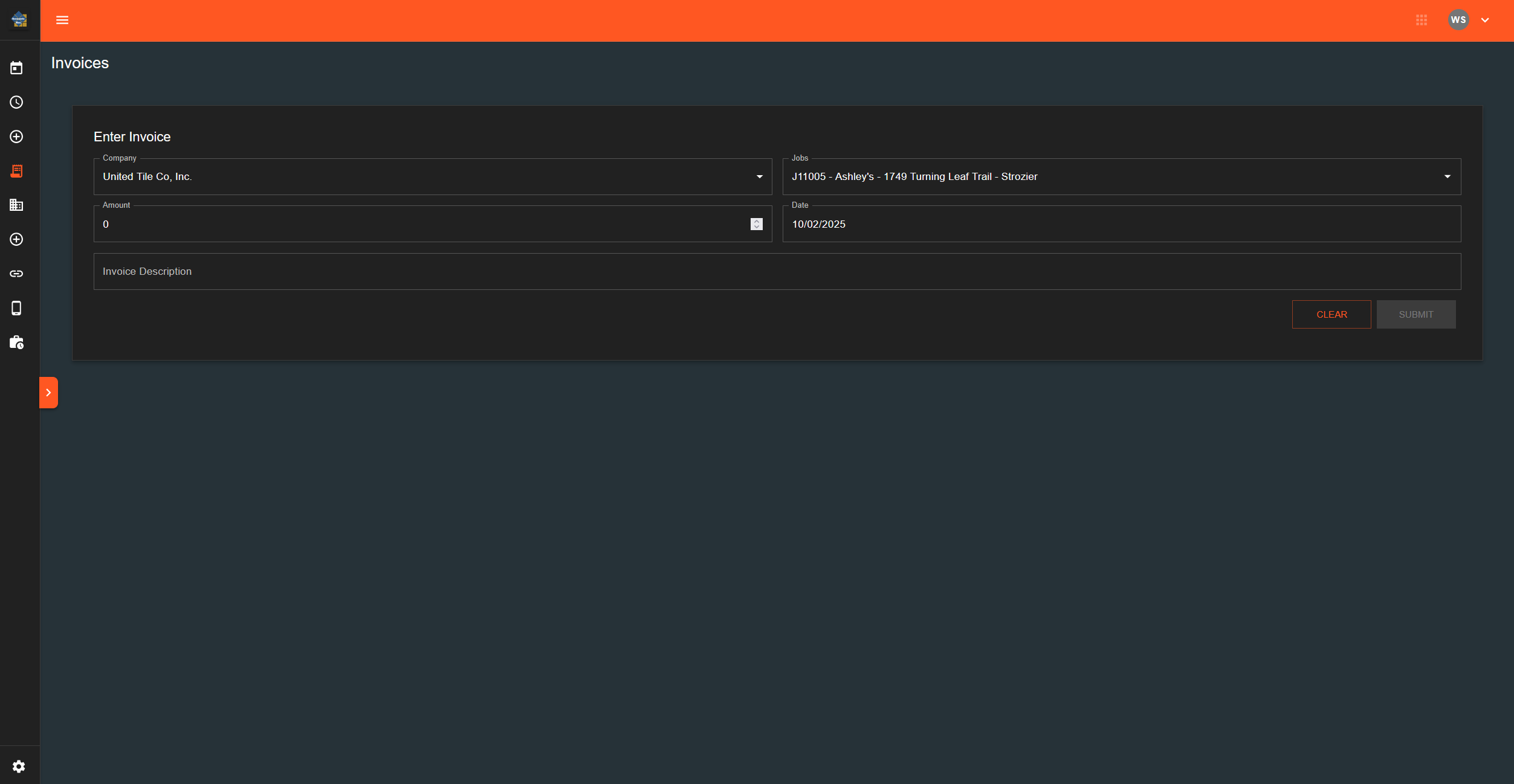
Page Layout
Input Fields
Company (Dropdown)
- Options: United Tile, American Tile, Farley's Glass, Classic Stone
- Required field
Jobs (Autocomplete)
- Displays as: Job Number - Job Name format
- Options populate based on selected company
- Required field
Amount (Number Input)
- Accepts numeric values
- Required field
Date (Date Picker)
- Calendar interface for date selection
- Required field
Invoice Description (Text Input)
- Single line text field
- Optional field
Action Buttons
Clear
- Opens confirmation dialog before clearing
- Dialog shows: "Are you sure you want to clear all form data? This action cannot be undone."
- Buttons in dialog: Cancel, Clear
Submit
- Opens confirmation dialog before submitting
- Dialog shows: "Are you sure you want to submit this invoice? Please review all details before confirming."
- Buttons in dialog: Cancel, Submit Invoice
- Disabled when: amount is 0 or less, no date selected, no job selected
Field Behavior
Company Selection:
- Changing company clears the Jobs field
- Jobs dropdown repopulates with options for new company
Jobs Field:
- Shows "No options" if no jobs available for selected company
- Auto-selects first option when jobs load
Submit Button States:
- Grey (disabled): Missing required fields
- Blue (enabled): All required fields filled
What Happens When You...
Click Clear:
- Confirmation dialog appears
- Clicking "Clear" resets Amount and Description fields to empty
- Shows notification: "Invoice form has been cleared"
Click Submit:
- Confirmation dialog appears
- Clicking "Submit Invoice" processes the form
- Shows notification: "Invoice for $[amount] has been successfully submitted"
- Page remains on same form (ready for next entry)
Enter Invalid Data:
- No validation errors shown until submission attempted
- Form will not submit if required fields are empty