Add Payment
Path: /transactions/create
Image: 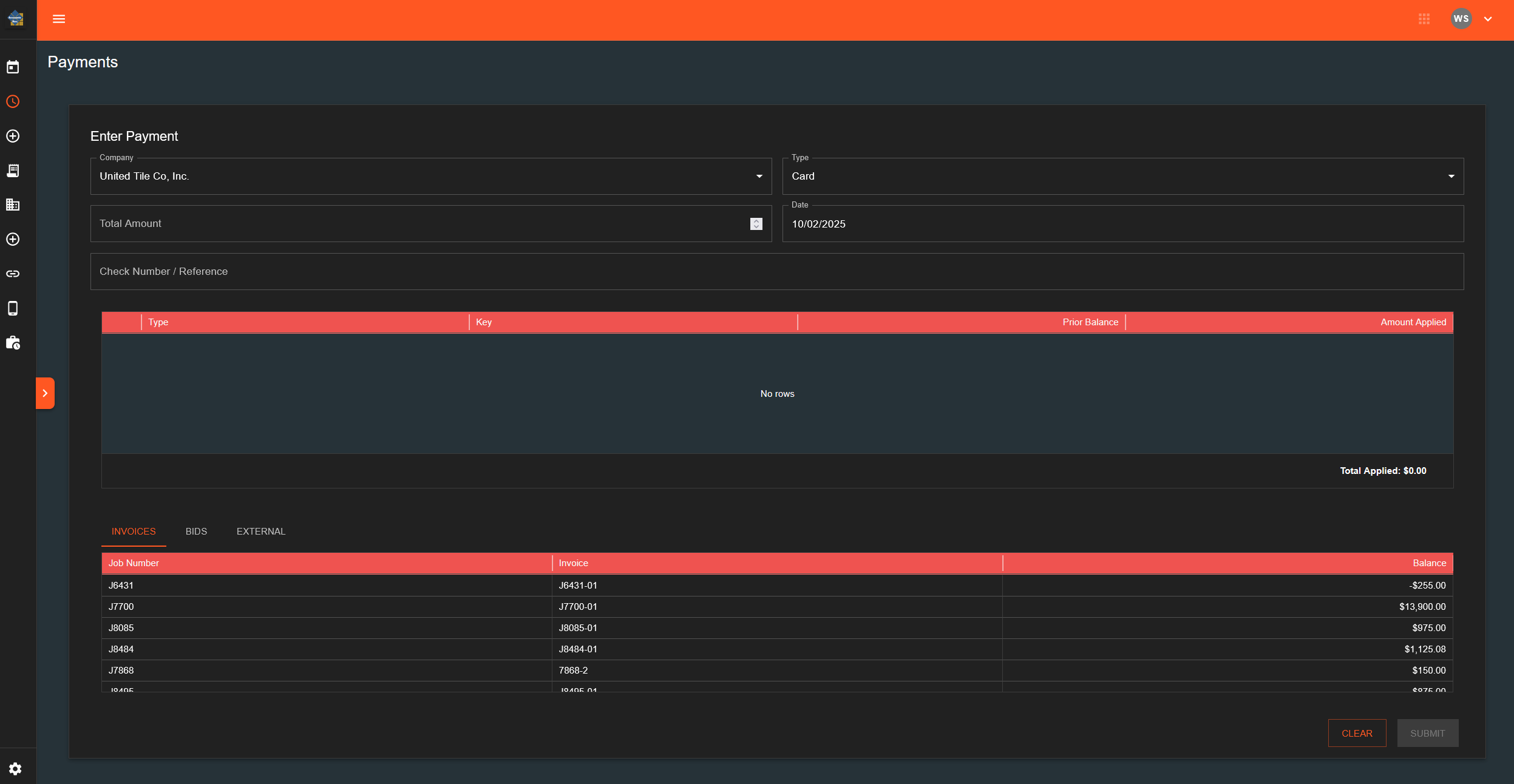
Page Layout
Input Fields
Company (Dropdown)
- Options: United Tile, American Tile, Farley's Glass, Classic Stone
- Required field
Type (Dropdown)
- Options: Cash, Credit Card, Check, Other payment types
- Required field
Total Amount (Number Input)
- Accepts numeric values
- Shows placeholder text if applications exist: "Auto: [calculated total]"
- Helper text displays: "Using calculated total: $[amount]" when empty
Date (Date Picker with Time)
- Calendar and time selection interface
- Defaults to current date/time
- Required field
Check Number / Reference (Text Input)
- Single line text field
- Label changes based on Type selected
- Optional field
Payment Applications Section
Table with columns:
- Type
- Identifier
- Prior Balance
- Amount
- Remove (trash icon button)
Add Application Button:
- Opens dialog to select application type and item
- Dialog contains dropdown for selecting invoices or other items
Action Buttons
Clear
- Opens confirmation dialog
- Clears Reference field and all applications
- Shows notification: "Payment form has been cleared"
Submit
- Opens confirmation dialog
- Disabled when: amount is 0, no date selected, no applications added
Field Behavior
Company Selection:
- Changing company clears all existing applications
- Must re-add applications after company change
Amount Field:
- If left empty: uses sum of application amounts
- If filled: overrides calculated total
- Can differ from application total
Applications Table:
- Each row shows an applied payment
- Amount can be edited directly in table
- Trash icon removes the application row
What Happens When You...
Click "Add Application":
- Dialog opens with dropdown menu
- Select application type (usually "Invoice")
- Select specific item from second dropdown
- Item appears in applications table
Click Clear:
- Confirmation dialog appears
- Clicking "Clear" removes all applications and reference text
- Amount field resets to empty
Click Submit:
- Confirmation dialog appears
- Shows message: "Are you sure you want to submit this payment?"
- Clicking "Submit Payment" processes the form
- Shows notification: "Payment of $[amount] has been successfully submitted"
- Page redirects to blank form