Batch Report
Path: /transactions/batch-report
Image: 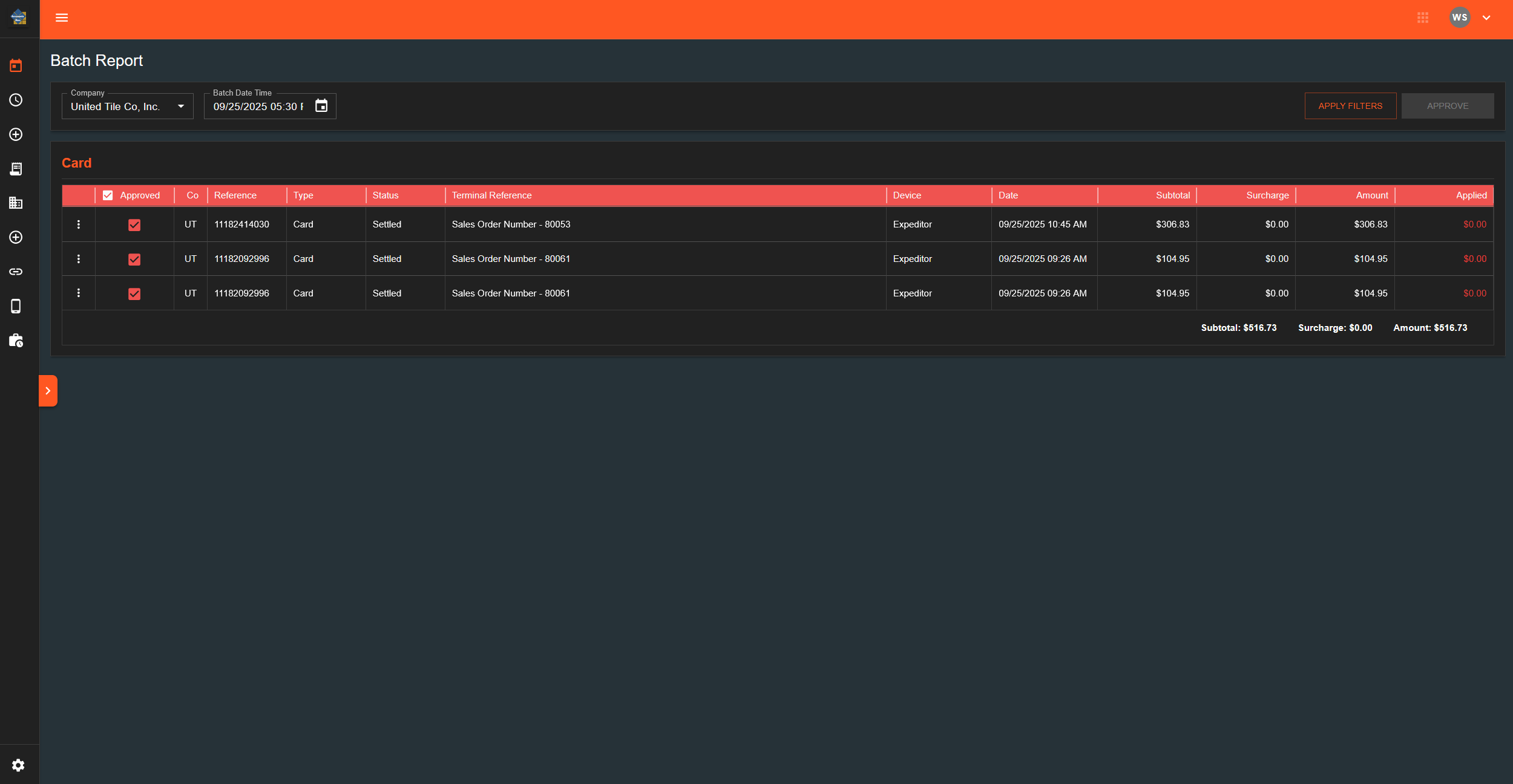
Page Layout
Filter Controls
Company (Dropdown)
- Options: United Tile, American Tile, Farley's Glass, Classic Stone
- Selecting changes company filter
Batch Date Time (Date/Time Picker)
- Calendar and time selection
- Updates report when changed
Apply Filters (Button)
- Refreshes report with current filter selections
Approve [Number] (Button)
- Shows count of selected transactions
- Disabled when no transactions selected
- Green when transactions are selected
Report Tables
Grouped by Payment Type:
- Each payment type (Cash, Check, Credit Card, etc.) shows in separate table
- Tables display:
- Checkbox column for approval
- Company code
- Reference number
- Type
- Status
- Terminal info
- Device name
- Date and time
- Subtotal amount
- Surcharge amount
- Total amount
- Applications info
Footer Row (per table):
- Shows totals for: Subtotal, Surcharge, Amount
Row Actions Menu (three dots)
Available options:
- Edit Applications
- Unapprove Payment (only if already approved)
- Delete Payment (only if manually entered)
Checkbox Behavior
Header Checkbox:
- Selects all unapproved transactions in that payment type table
- Shows intermediate state when some selected
Row Checkboxes:
- For unapproved: adds to selection count
- For approved: opens unapproval confirmation dialog
What Happens When You...
Change Company or Date:
- Adjust dropdown/picker values
- Click "Apply Filters"
- Tables reload with new data
Select Transactions and Click Approve:
- Button shows count: "Approve [number]"
- Click button
- Selected transactions update to approved status
- Page refreshes
- Selections clear
Click Row Menu → Unapprove:
- Confirmation dialog appears
- Dialog asks: "Are you sure you want to unapprove this payment?"
- Clicking "Unapprove" removes approval status
- Transaction becomes selectable again
Click Row Menu → Delete:
- Confirmation dialog appears
- Clicking confirm removes transaction
- Page refreshes