Invoices
Path: /invoices
Image: 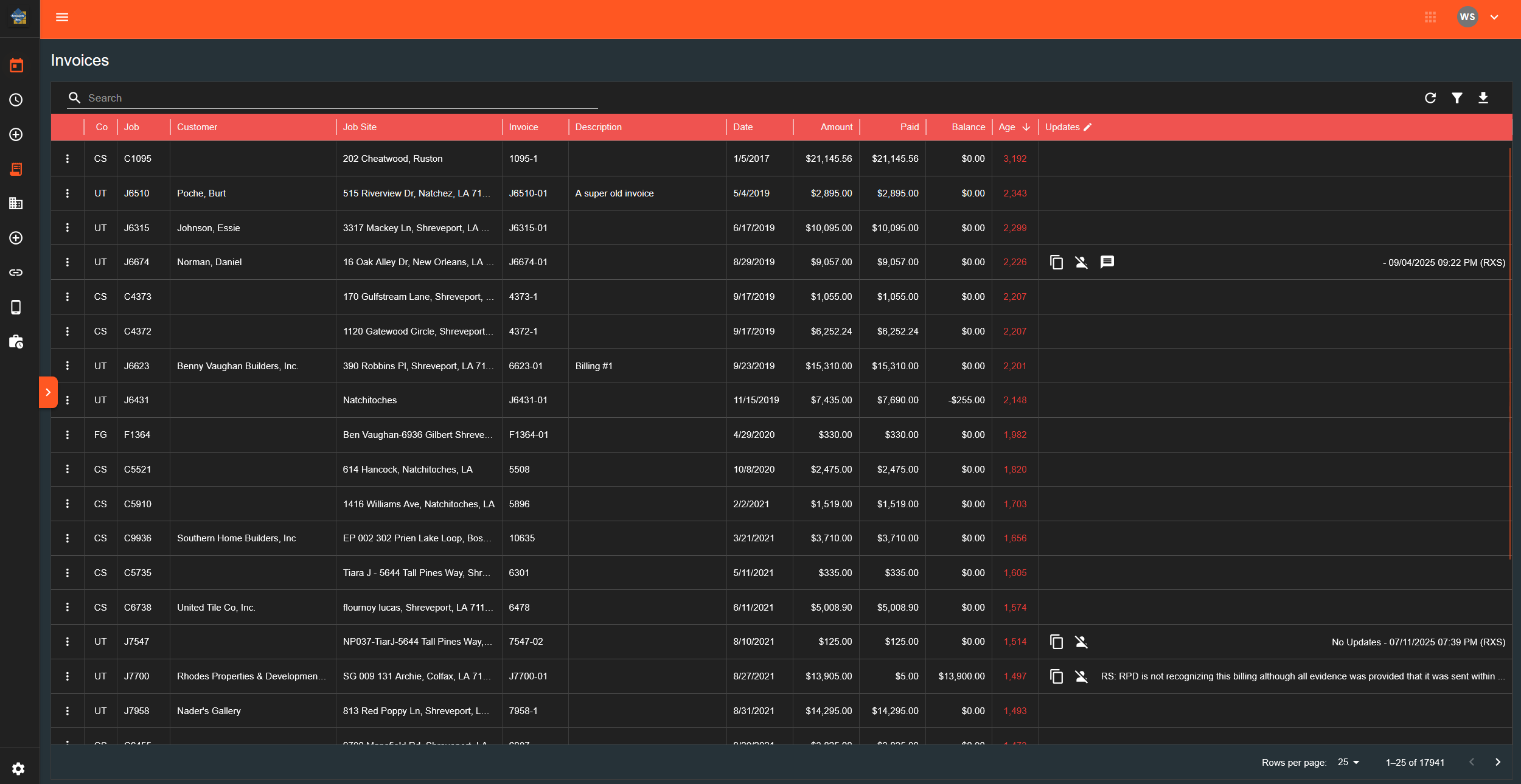
Page Layout
Search and Filter Bar
Search Field:
- Text input for searching invoices
Filter Drawer (accessed via button):
- Options section:
- Hide Zeroes checkbox
- Companies section:
- Checkboxes for each company
- Date Range section:
- Use Date Range checkbox
- Start and end date pickers
Action Buttons:
- Apply Filters
- Clear Filters
- Export (downloads CSV)
Invoice Table
Columns:
- Co (company code)
- Job
- Customer
- Job Site
- Invoice
- Description
- Date
- Amount
- Paid
- Balance
- Age (colored: green 0-59, yellow 60-89, red 90+)
- Updates (speech bubble icon)
Row Menu (three dots):
- Open in Payments
- Edit Invoice
- View Payments
- View Updates
- Delete Invoice
Table Footer:
- Rows per page selector
- Page navigation controls
What Happens When You...
Use Search:
- Type in search field
- Table filters to matching rows
- Search applies across all visible columns
Apply Filters:
- Open filter drawer
- Check/uncheck desired options
- Click "Apply Filters"
- Table updates to show filtered results
Click "Clear Filters":
- Removes all active filters
- Resets to full invoice list
- Search field clears
Click "Export":
- Downloads CSV file with current filtered results
- Filename:
invoices-[date].csv
Double-click a row:
- Opens invoice dialog
Click row menu → Open in Payments:
- Navigates to Add Payment page
- Pre-fills invoice information
Click row menu → Edit Invoice:
- Opens dialog with invoice form
- Fields: Amount, Date, Description
- Save button processes changes
Click row menu → View Payments:
- Opens dialog showing payments table
- Displays all payments applied to this invoice
Click row menu → View Updates:
- Opens dialog with activity log
- Shows timestamp and note for each update
Click row menu → Delete Invoice:
- Opens confirmation dialog
- Dialog asks: "Are you sure you want to delete this invoice?"
- Clicking confirm removes invoice from system
Click updates icon in row:
- Opens updates dialog
- Same as "View Updates" menu option