Jobs
Path: /jobs
Image: 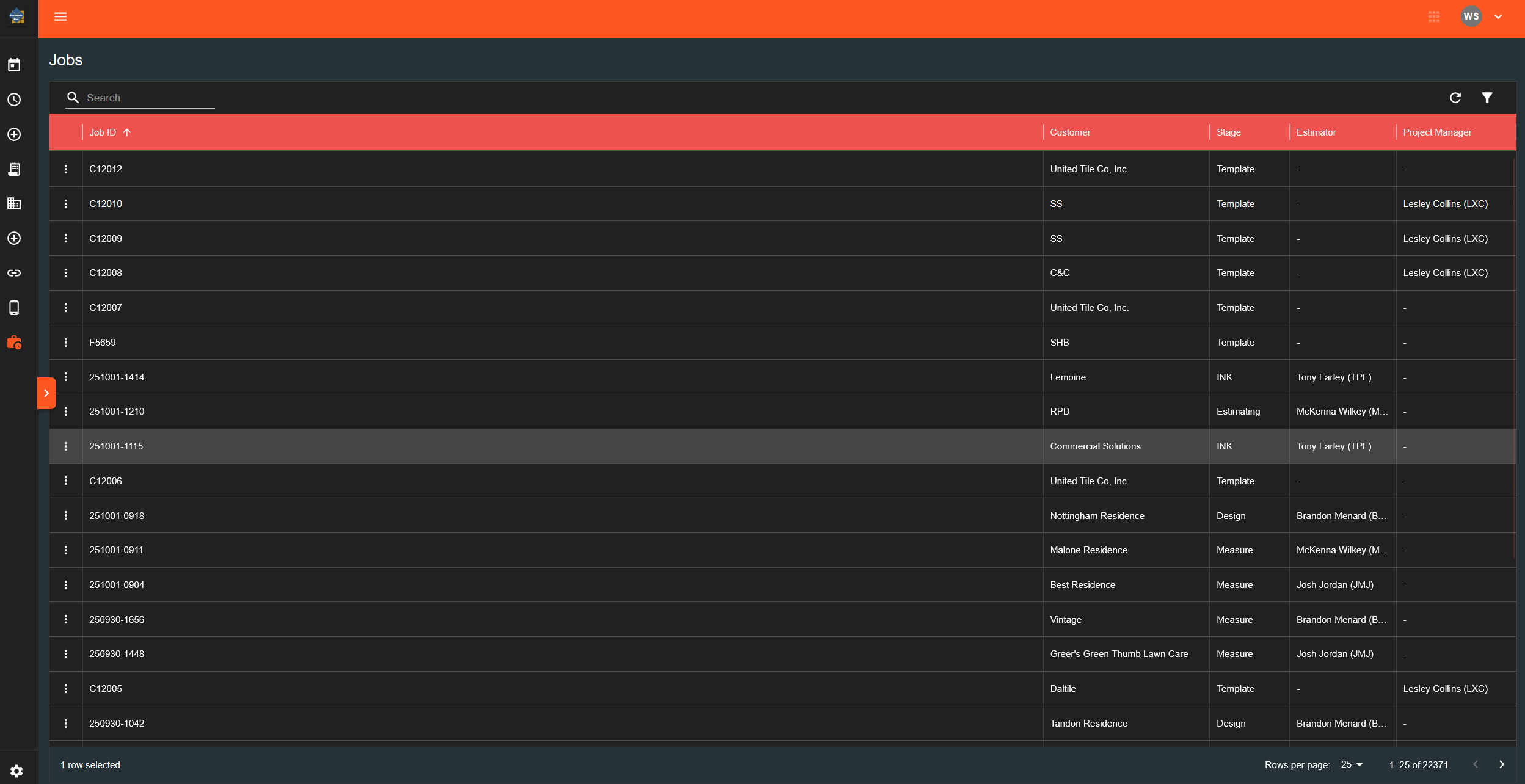
Page Layout
Search and Filter Bar
Search Field:
- Text input at top of page
Filter Drawer (accessed via button):
- Companies checkboxes:
- UT
- FG
- CS
- ATM
Action Buttons:
- Apply Filters
- Clear Filters
Job Table
Columns:
- Job ID
- Customer
- Stage
- Estimator (shows name and initials)
- Project Manager (shows name and initials)
Row Menu (three dots):
- Generate Summary
- View Payments (currently disabled)
Table Footer:
- Rows per page selector
- Page navigation controls
Mobile View
On smaller screens, table switches to card layout showing:
- Job identifier (bold)
- Customer name
- Stage and estimator info (smaller text)
What Happens When You...
Use Search:
- Type in search field
- Table filters to matching entries
Apply Filters:
- Click filter button
- Check/uncheck company boxes in drawer
- Click "Apply Filters"
- Table updates to show selected companies only
Click "Clear Filters":
- Unchecks all company filters
- Clears search field
- Shows all jobs
Click row menu → Generate Summary:
- Downloads PDF document
- Filename format:
project-summary-[number].pdf - File generates in background
Sort Columns:
- Click column header to sort
- Arrow icon indicates sort direction
- Click again to reverse sort order