Buyout Entry
Path: /buyout-entry
Image: 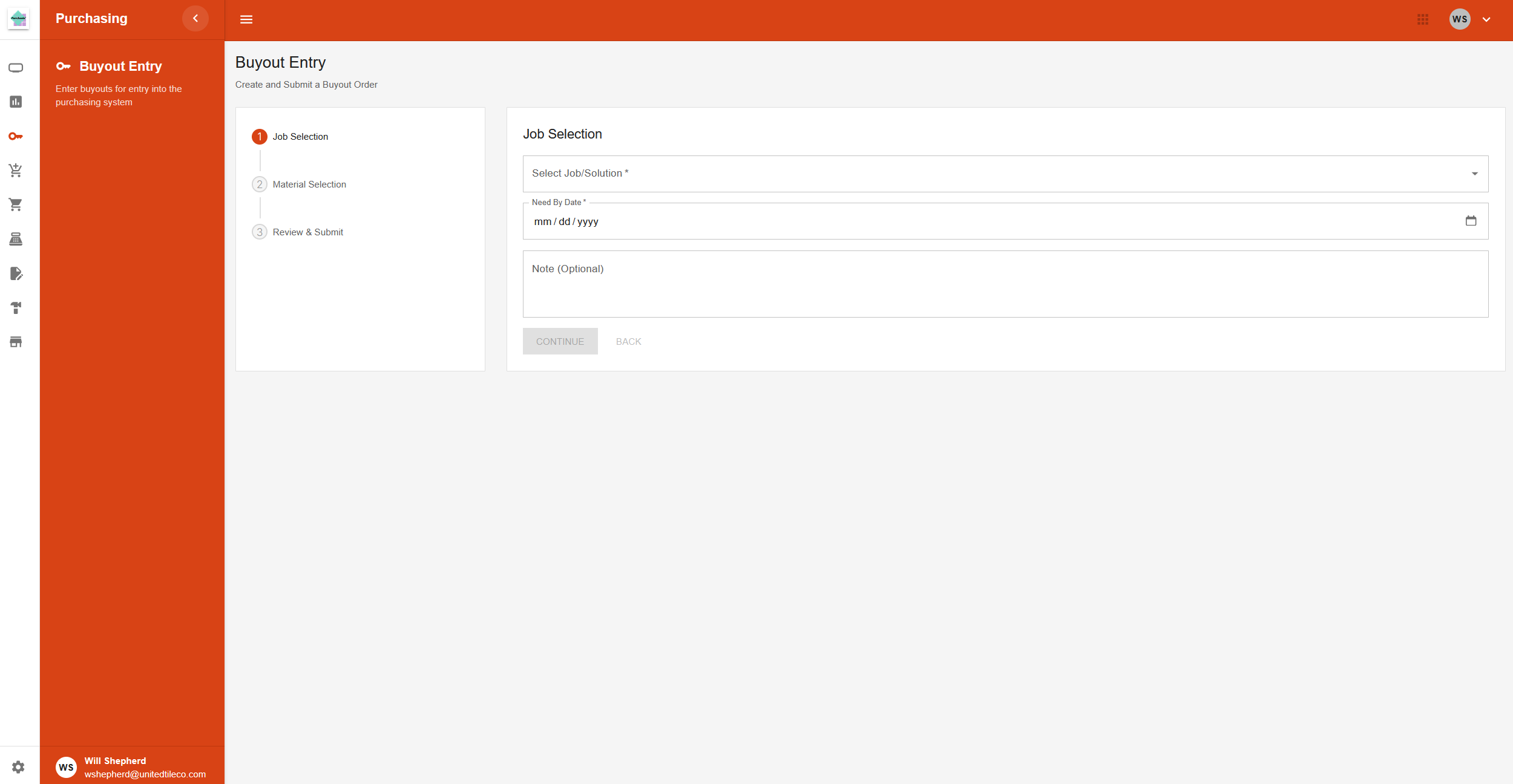
Page Layout
This page uses a step-by-step process to create a buyout order. The steps are listed on the left, and the main content for each step is on the right.
Step 1: Job Selection
This step is for identifying the job and basic details.
- Select Job/Solution: A searchable list to choose a job.
- Need By Date: A calendar to select the date the materials are needed by.
- Note (Optional): A text box for any additional comments.
Step 2: Material Selection
This step is for adding the materials needed for the job.
- Add Material Button: Adds a new, blank material form to the page.
- Material Form: Each material has its own section with the following fields:
- Select Item: A searchable list of inventory items.
- Description: A read-only field that is automatically filled in based on other selections.
- Quantity: A field to enter the quantity needed.
- Unit of Measure: A dropdown to select the unit of measure (e.g., SF, LF).
- Unit Price: A field to enter the price per unit.
- Remove Icon (trash can): Appears next to each material to remove it from the list.
- Additional Fields: Depending on the item selected, other fields may appear for details like supplier, color, width, length, etc.
Step 3: Review & Submit
This is the final step to review all the information before submitting.
- Job Information: A summary of the job and note entered in Step 1.
- Materials Table: A table that lists all materials added in Step 2, showing their ID, description, quantity, price, and total. It also includes a final total for the entire order.
Action Buttons
- Continue: Moves to the next step. It is disabled until all required fields in the current step are filled.
- Back: Moves to the previous step.
- Submit: On the final step, this button submits the buyout order.