Job Status/Materials Report
Path: /job-status-report
Image: 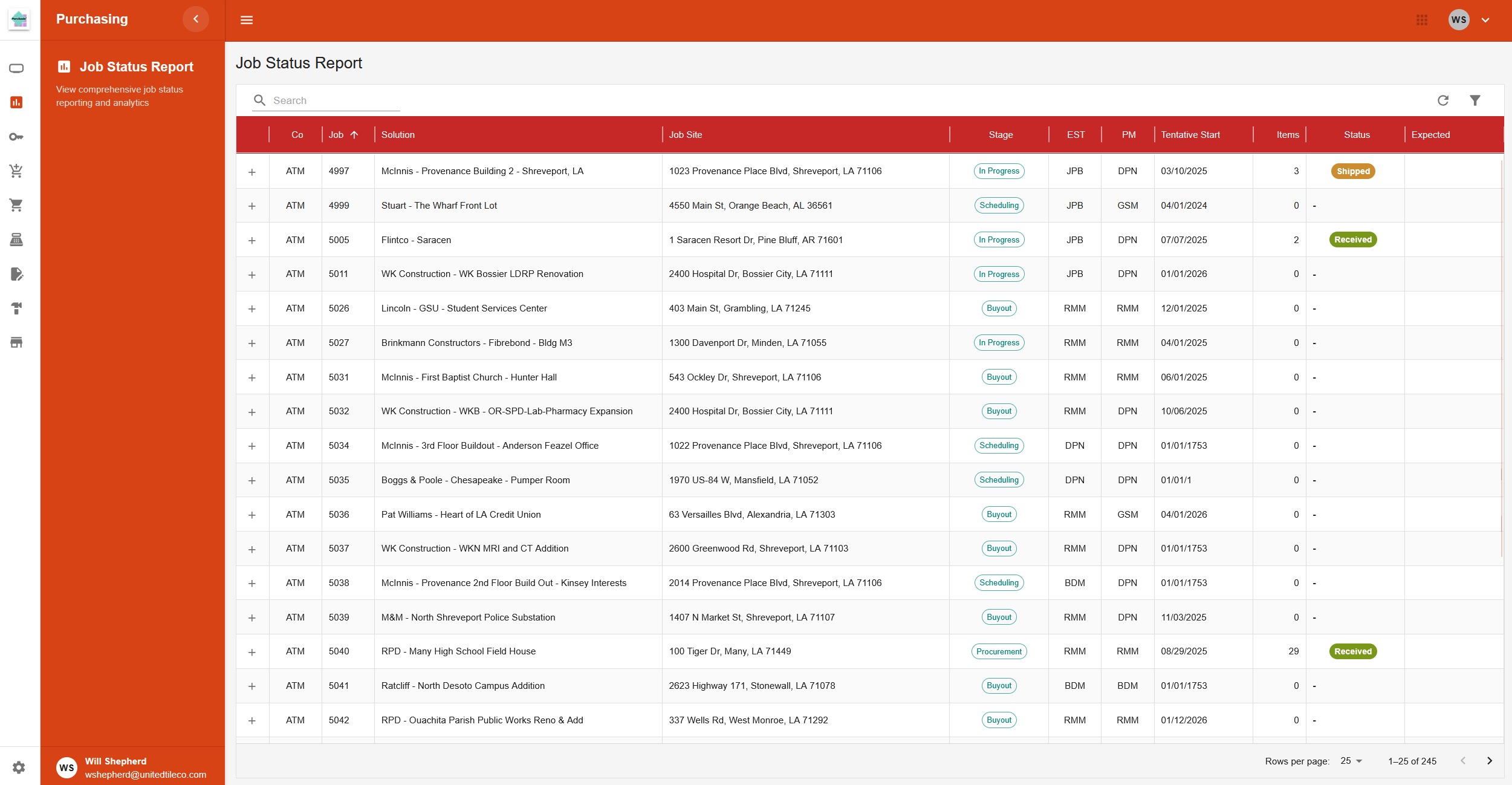
Page Layout
This page provides a detailed report on the status of jobs. It features a main table of jobs, which can be expanded to show more detailed information about suppliers and items.
Filters and Presets
The toolbar at the top of the page includes options for filtering the job list.
- Search Bar: A field to search for specific jobs.
- Filter Button: Opens a side panel with advanced filter options:
- Presets: Buttons for quickly applying common filter sets (e.g., "American Tile", "United Tile Production").
- Options: A checkbox to hide jobs that do not have any items.
- Companies: A list of checkboxes to filter by one or more companies.
- Solution Types: A list of checkboxes to filter by job type.
- Apply Filters Button: Applies the selected filters from the side panel.
- Clear Filters Button: Resets all filters.
Job Table (Desktop View)
The main view on desktop is a table listing jobs.
- Columns: Includes details like Company (Co), Job ID, Solution Name, Job Site, Stage, Estimator (EST), and Project Manager (PM).
- Expandable Rows: Each row in the job table can be clicked to expand it, revealing a detailed inner table.
Expanded View (Suppliers and Items)
When a job row is expanded, it shows a nested table of suppliers and their items for that job.
- Supplier Rows: Lists all suppliers associated with the job. These rows can also be expanded.
- Item Rows: Expanding a supplier row reveals a table of all the items from that supplier for the job, including details like ID, description, quantity, status, and expected date.
Mobile View
On smaller screens, the page displays a simplified list view.
- Job List: Each job is shown as a card with key information.
- Details Pop-up: Tapping a job card opens a pop-up window with two tabs: one for job details and another for the list of suppliers and items.